
Wallet Operations
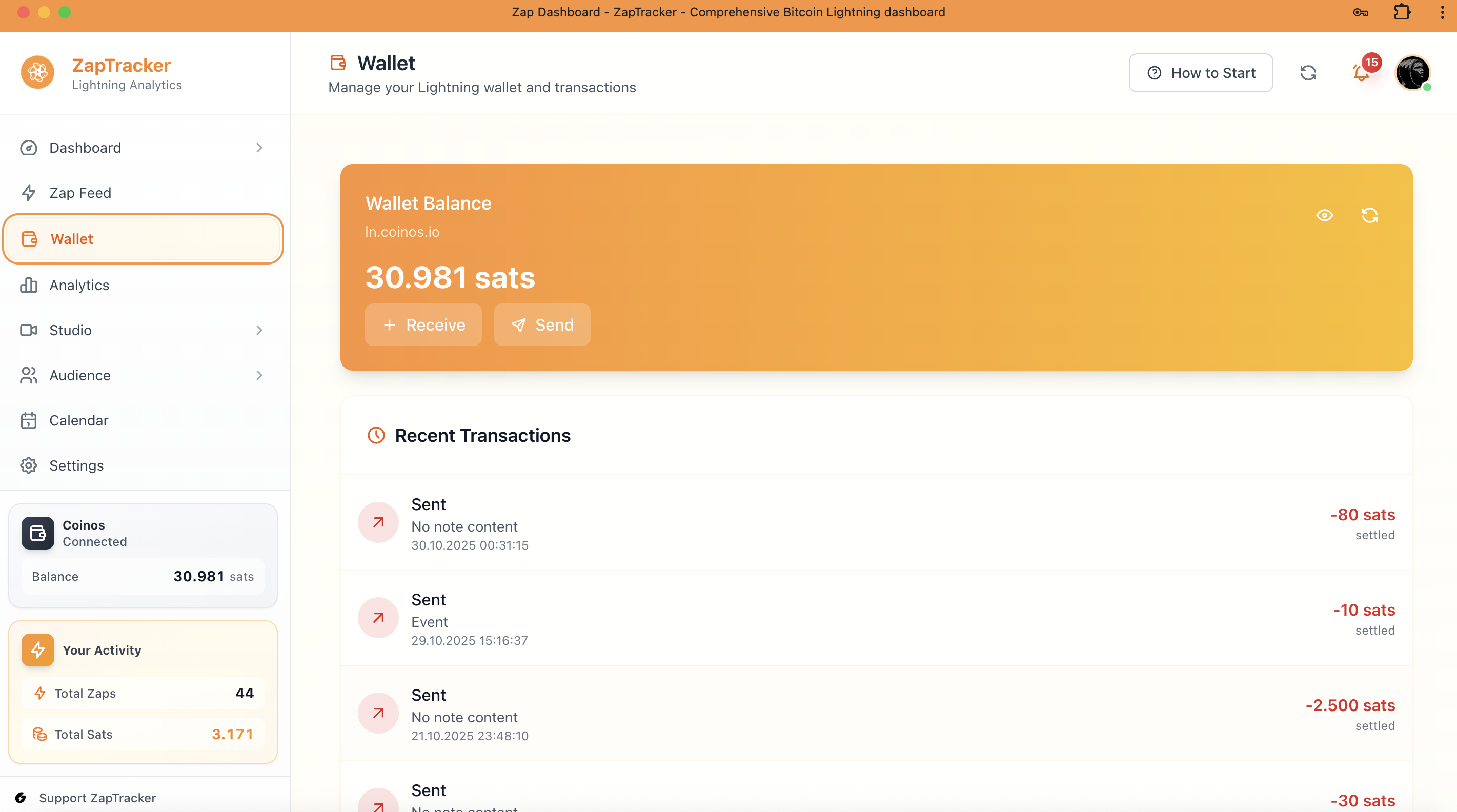
ZapTracker integrates with Lightning wallets through Nostr Wallet Connect (NWC), giving you full control over your funds.
Send, receive, and track all your Lightning payments in one place.
Connecting Your Wallet
Prerequisites
You need a wallet that supports NWC:
Compatible Wallets
Alby Browser extension wallet
Coinos Web-based wallet
LNBits Self-hosted solution
Any NWC wallet Supporting the protocol
Setup Steps
Open your wallet application
Find NWC or Connect Apps section
Create a new connection
Copy the NWC URL
Starts with nostr+walletconnect://
Paste in ZapTracker Settings
Connection Settings
When creating your NWC connection, you can set:
| Setting | Recommendation |
|---|---|
| Spending Limit | Start with a daily limit you're comfortable with |
| Expiration | 30-90 days, then renew |
| Permissions | Allow send/receive as needed |
Checking Your Balance
Once connected, your balance appears:
- On the Dashboard (top metrics)
- In the Wallet section
- Updates in real-time
Sending Payments
To a Lightning Invoice
- Go to Wallet → Send
- Paste the Lightning invoice (starts with
lnbc...) - Review the amount and description
- Click Send
- Confirm in your wallet if required
To an LNURL
- Go to Wallet → Send
- Paste the LNURL or Lightning Address
- Enter the amount
- Click Send
Receiving Payments
Generate an Invoice
- Go to Wallet → Receive
- Enter an amount (or leave blank for any amount)
- Add an optional description
- Click Generate
- Share the QR code or invoice string
Your Lightning Address
If your wallet provides a Lightning Address, share it for easy payments:
- Format:
you@wallet.provider - People can pay without you generating invoices
Transaction History
View all your wallet activity:
- Incoming payments (green)
- Outgoing payments (red)
- Amount and timestamp
- Payment descriptions
Filter by:
- Time period
- Direction (in/out)
- Amount range
Security Tips
Use a Dedicated Wallet
Don't connect your main savings wallet. Use a separate "hot" wallet for ZapTracker with limited funds.
Set Spending Limits
Configure your NWC connection with daily/weekly limits. If something goes wrong, your exposure is limited.
Regular Withdrawals
Move significant earnings to cold storage:
- Keep a working balance in your connected wallet
- Periodically withdraw to a more secure wallet
- Don't let large amounts sit in a hot wallet
Rotate Connections
Regenerate your NWC connection periodically:
- Delete the old connection in your wallet
- Create a new one
- Update in ZapTracker
Troubleshooting
Balance Not Showing
- Check that your wallet app is running
- Verify the NWC URL is correct
- Try disconnecting and reconnecting
Payments Failing
- Ensure sufficient balance
- Check spending limits in wallet settings
- Verify the invoice/address is valid
Connection Lost
- NWC connections can expire
- Regenerate in your wallet and reconnect